Silent Authentication
Silent authentication signs the player in using their existing platform identity (Steam, PlayStation Network, Xbox Live, Epic Games, or GOG Galaxy). No login prompt is shown. The player is authenticated transparently as part of SDK initialization.
Silent authentication is not supported for Nintendo Switch.
Before a player is authenticated for the first time, CurseForge for Studios displays a one-time Terms of Use and Privacy Policy consent screen. The player must accept before a CurseForge account is created on their behalf.
Steam Silent Authentication
Steam auth uses an encrypted session ticket issued by the Steam Online Subsystem. The ticket proves the player's Steam identity to the CurseForge backend without requiring any additional sign-in UI.
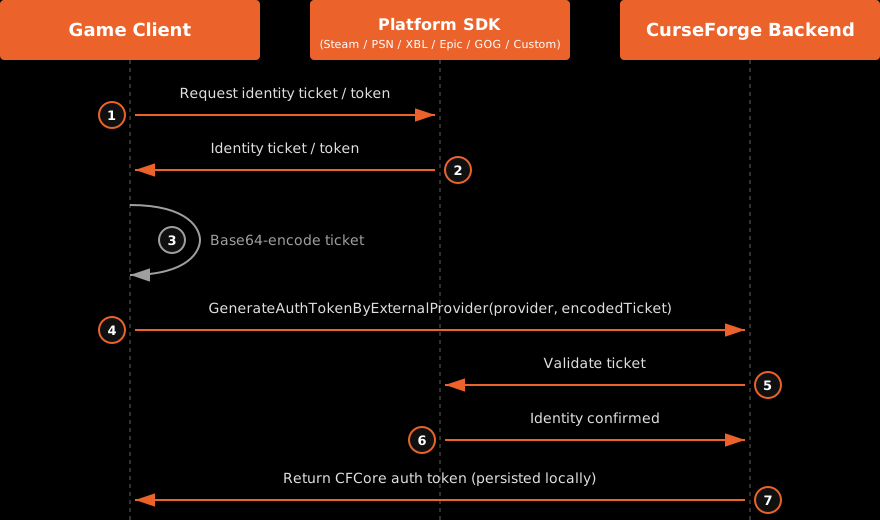
- The game client requests an identity ticket / token from the platform SDK.
- Platform SDK returns the ticket / token.
- Game encodes the ticket if required (Steam and GOG only).
- Game calls GenerateAuthTokenByExternalProvider with the encoded value.
- CurseForge backend validates the ticket against the platform.
- Platform confirms the player's identity.
- CurseForge issues an auth token; the SDK persists it locally.
How it works:
- Your game calls
ISteamUser::GetAuthSessionTicket()via the Steam OSS to obtain a raw session ticket. - Base64-encode the raw ticket bytes.
- Pass the encoded string to
GenerateAuthTokenByExternalProviderwith providerSteam.
FString SteamTicketBase64 = /* base64-encoded session ticket */;
FExternalAuthAdditionalInfo AdditionalInfo; // empty for Steam

CFCoreContext::GetInstance()->Authentication()->GenerateAuthTokenByExternalProvider(
    ECFCoreExternalAuthProvider::Steam,
    SteamTicketBase64,
    AdditionalInfo,
    [](const FCFCoreError& Error) {
        // handle error
    });
Blueprint: Call Generate Auth Token for an external provider, set Provider to Steam, and pass the base64 ticket as the External Token.
Steam App ID. Steam auth requires your Steam App ID to be configured in the Developer Portal. Only one App ID can be registered per game. If your title uses separate App IDs for your live and development environments, coordinate with your CurseForge for Studios integration engineer before configuring.
PlayStation Network Silent Authentication
PSN auth silently creates or signs in a CurseForge user using the player's PlayStation account. No additional prompt is shown beyond what the PSN SDK itself handles as part of your platform sign-in flow.
How it works:
- Obtain a PSN access token using an authorization code from the PSN SDK.
- Optionally set the target PSN environment (
"dev","qa", or"prod") inFExternalAuthAdditionalInfo. - Pass the access token to
GenerateAuthTokenByExternalProviderwith providerPSN.
FString PsnAccessToken = /* token from PSN SDK */;

FExternalAuthAdditionalInfo AdditionalInfo;
AdditionalInfo.environment = TEXT("prod"); // or "dev" / "qa" for testing

CFCoreContext::GetInstance()->Authentication()->GenerateAuthTokenByExternalProvider(
    ECFCoreExternalAuthProvider::PSN,
    PsnAccessToken,
    AdditionalInfo,
    [](const FCFCoreError& Error) {
        // handle error
    });
Blueprint: Call Generate Auth Token for an external provider, set Provider to PSN, pass the access token, and set the environment field in Additional Info.
Sandbox model. CurseForge for Studios uses a unified PSN sandbox model. Make sure the environment value in FExternalAuthAdditionalInfo matches the PSN sandbox your build targets. Use "dev" or "qa" during development and "prod" for release builds. A mismatch will cause auth to succeed against the wrong sandbox.
Xbox Live Silent Authentication
Xbox Live auth uses an XSTS token to authenticate the player against their Xbox identity. Like other platform providers, no additional sign-in UI is presented.
How it works:
- Obtain an XSTS token from the Xbox Live SDK.
- Pass it directly to
GenerateAuthTokenByExternalProviderwith providerXBL.
FString XstsToken = /* XSTS token from Xbox Live SDK */;
FExternalAuthAdditionalInfo AdditionalInfo; // empty for XBL

CFCoreContext::GetInstance()->Authentication()->GenerateAuthTokenByExternalProvider(
    ECFCoreExternalAuthProvider::XBL,
    XstsToken,
    AdditionalInfo,
    [](const FCFCoreError& Error) {
        // handle error
    });
Blueprint: Call Generate Auth Token for an external provider, set Provider to XBL, and pass the XSTS token as the External Token.
GOG Galaxy Silent Authentication
GOG Galaxy auth silently authenticates the player using an encrypted app ticket issued by the GOG Galaxy SDK. The ticket is base64-encoded by your game before being passed to the SDK.
The Encrypted App Ticket Key for your game must be configured in the Authentication section of the Developer Portal at console.curseforge.com before token exchange will work.
How it works:
- Call
galaxy::api::User()->RequestEncryptedAppTicket()from the GOG Galaxy SDK to obtain a raw encrypted ticket. - Base64-encode the raw ticket bytes.
- Pass the encoded string to
GenerateAuthTokenByExternalProviderwith providerGOG.
FString Base64Ticket = FBase64::Encode(RawTicketBytes, RawTicketLength);

FExternalAuthAdditionalInfo AdditionalInfo;
// eulaAcceptTime can be set if the user accepted the EULA at a known time
// AdditionalInfo.eulaAcceptTime = FDateTime::UtcNow();

CFCoreContext::GetInstance()->Authentication()->GenerateAuthTokenByExternalProvider(
    ECFCoreExternalAuthProvider::GOG,
    Base64Ticket,
    AdditionalInfo,
    ICFCoreAuthentication::FGenerateAuthTokenByExternalProviderDelegate::CreateLambda(
        [](const TOptional<FString>& token, const TOptional<FCFCoreError>& error) {
            if (token.IsSet()) {
                // Authentication successful
            }
        }));
Blueprint: Use a Generate Auth Token By External Provider node with the Provider pin set to GOG and the External Token pin set to the base64-encoded ticket string.
Epic Silent Authentication
Epic Games auth silently authenticates the player using a JWT ID token issued by the Epic Online Services (EOS) SDK. No encoding is required, the JWT string is passed directly to the SDK.
How it works:
- Authenticate the user via EOS.
- Call
EOS_Auth_CopyIdTokenfrom the EOS SDK to retrieve the user's JWT ID token. - Pass the JWT string directly to
GenerateAuthTokenByExternalProviderwith providerEpic.
For full details on retrieving the ID token, refer to the Epic documentation.
FString JwtToken = /* token from EOS_Auth_CopyIdToken */;

FExternalAuthAdditionalInfo AdditionalInfo;

CFCoreContext::GetInstance()->Authentication()->GenerateAuthTokenByExternalProvider(
    ECFCoreExternalAuthProvider::Epic,
    JwtToken,
    AdditionalInfo,
    ICFCoreAuthentication::FGenerateAuthTokenByExternalProviderDelegate::CreateLambda(
        [](const TOptional<FString>& token, const TOptional<FCFCoreError>& error) {
            if (token.IsSet()) {
                // Authentication successful
            }
        }));
Blueprint: Use a Generate Auth Token By External Provider node with the Provider pin set to Epic and the External Token pin set to the JWT string from EOS_Auth_CopyIdToken.