Supporting modded servers
CurseForge for Studios includes a dedicated feature set built for the multiplayer modded server experience. It covers how a server and its connecting players stay in sync on which mods are running, how content gets distributed to everyone in a session, and how studios and mod authors can safely test new mod work before it's public.
The main thing to plan for upfront: which of these capabilities your game actually needs depends on whether your modded experience is server-authoritative (dedicated servers with a fixed mod list) or session-based (players bring their own cosmetics into a shared match). Most studios use a combination of the capabilities below rather than just one.
| Capability | What it does | When to use it |
|---|---|---|
| Server connection screen | Gives the player visibility into the mods and disk space required to join a server, plus notice of any premium mods they'll need to buy first | Games that want players informed of what's required before they commit to joining |
| Auto install/sync on server connection | Keeps a server's required mods and every connecting client's local mods aligned before the session starts | Any game with dedicated or player-hosted modded servers |
| Dynamic downloading | Distributes a mod (typically a cosmetic) to everyone in a session, without granting ownership | Multiplayer games where one player's cosmetic needs to render correctly for everyone else |
| Freemium mods | Lets every player install a mod for free while it gates its own premium features per player | Server environments where you want one shared mod installed for all players regardless of who paid |
| Testing mods on a server before launch | Loads an unpublished, in-review mod revision onto a live server | Mod authors and server operators validating a new revision before it goes public |
Server connection screen
When a player attempts to join a modded server, the CurseForge SDK automatically detects the server's required mods and shows the player a server module before the connection continues. That screen tells the player:
- The full list of mods needed to join
- How much disk space those mods will take up
- Whether any of the required mods are premium and need to be purchased first
The player reviews and approves from this screen before anything installs. Once they confirm, the SDK moves on to actually syncing their local mods with the server's requirements, covered next in Auto install/sync on server connection.
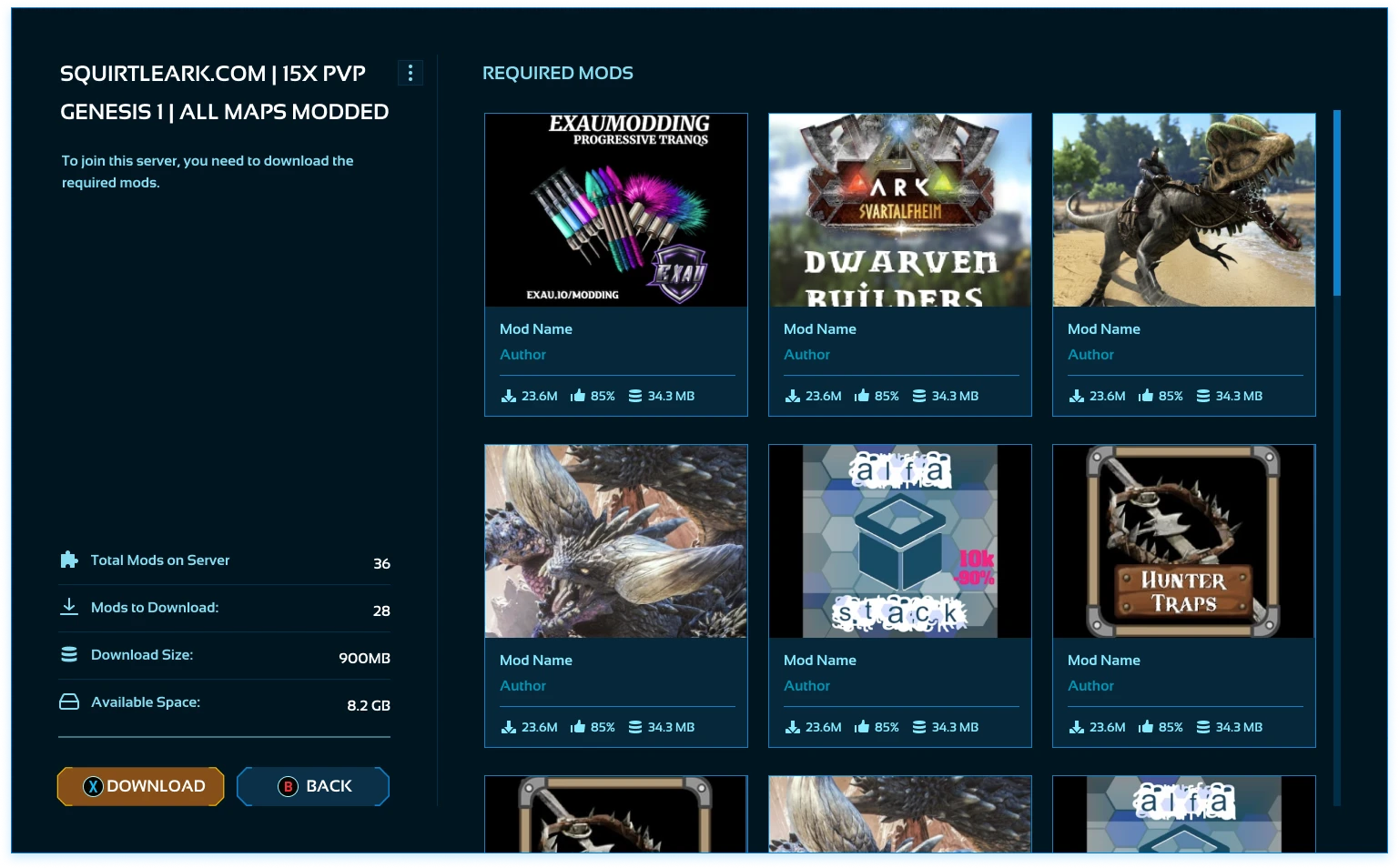
This screen is fully white-labeled. If you need a different look or flow, the CurseForge for Studios team can customize it on demand at cfforstudios@overwolf.com.
Auto install/sync on server connection
Before a session starts, the server and every connecting client need to agree on which mods are running. This capability handles that automatically so players never have to manually match a server's mod list.
After the player confirms they wish to join a server, the SDK aligns their local library with the requirements of the server by:
- Downloading any mods currently missing from the local machine
- Upgrading local mods if the server utilizes a more recent version
- Reverting to an older mod version if required by the server configuration
// Server, called before the server starts
FAssureServerModsUpdatedParams ServerParams;
ServerParams.modIds = RequiredModIds;

ICFCoreClientServerLibrary::AssureServerModsUpdated(
    ServerParams,
    [](const FModsUpdateProgress& Progress, const TOptional<FLibraryProgress>& LibraryProgress, const TOptional<FCFCoreMod>& Mod) {
        // drive a loading/progress UI on the server
    },
    [](const FCFCoreError& Error) {
        // handle error
    });

// Client, called when the player connects to the server
TArray<int64> RequiredFileIds = /* file IDs required by the server */;

ICFCoreClientServerLibrary::AssureClientModsUpdated(
    RequiredFileIds,
    [](const FModsUpdateProgress& Progress, const TOptional<FLibraryProgress>& LibraryProgress, const TOptional<FCFCoreMod>& Mod) {
        // drive a connection/loading screen progress bar
    },
    [](const FCFCoreError& Error) {
        // handle error, or proceed into the session on success
    });
Blueprint: Call Assure Server Mods Updated on the server before it starts. Call Assure Client Mods Updated on the client after it connects, before entering the session.
Set isServer = true in the CFCore settings before calling AssureServerModsUpdated.
Dynamic downloading
For content that needs to be visible to everyone in a session, not just the player who owns it, the game can distribute a mod silently in the background. The player receiving it doesn't need to install or own it themselves, they just need to be able to see it rendered correctly.
The main use case is cosmetics: if one player has a skin or visual mod equipped, dynamic downloading gets that same mod onto every other player's machine so they render it correctly, without those other players installing or purchasing anything.
A mod delivered this way is stored locally but is not treated as a full install. If the receiving player later installs or purchases it themselves through the normal flow, it converts automatically from dynamic content to a fully owned install.
Disk space management: There's no cleanup tied to a session ending. Dynamically-downloaded mods are managed by the game client against a dedicated disk space budget: when that budget fills up and new dynamic content needs room, the client deletes older dynamically-downloaded mods that aren't currently in use, oldest first, until there's enough space.
For example, a player who has mods A, B, and C on disk from earlier dynamic downloads, then joins a server that dynamically distributes D and E, could have A and B removed to make room if the budget is full, while any mod still in use stays.
Throttling: Dynamic downloads go through the same Install call as any other mod, so they take the same throttle_download_kbps parameter. Set it alongside dynamicContent to cap download speed during an active session, so a large cosmetic download doesn't hurt player ping. Default is 0, which means no throttling.
FInstallModAdditionalParams Params;
Params.dynamicContent = true;

ICFCoreLibrary::Install(ModId, FileId, Params);
Blueprint: Use Install Mod Extended and set Dynamic Content to true in the additional params.
Trigger management: The game decides when to trigger a dynamic download, not the SDK. The most common pattern is proximity: when a player gets near another player who has a cosmetic equipped, the game triggers a dynamic download of that cosmetic so it renders correctly for the player who doesn't own it. That's just one example; a game can trigger a dynamic download off any server or game event it chooses.
Impact on download counts: Dynamic downloads aren't counted in the mod usage dashboard and analytics shown to game developers. Download counts there reflect explicit downloads, players actively choosing to install a mod, and a dynamic download can happen without the player being aware of it, so counting it would misrepresent real demand for the mod.
If you plan to host premium mods as dynamic content, set dynamicContentCategoryIds in the CFCore settings. This ensures the SDK enforces a premium ownership check and prevents local metadata from being manipulated. For help scoping which categories need this, contact the CurseForge for Studios team at cfforstudios@overwolf.com.
Freemium mods
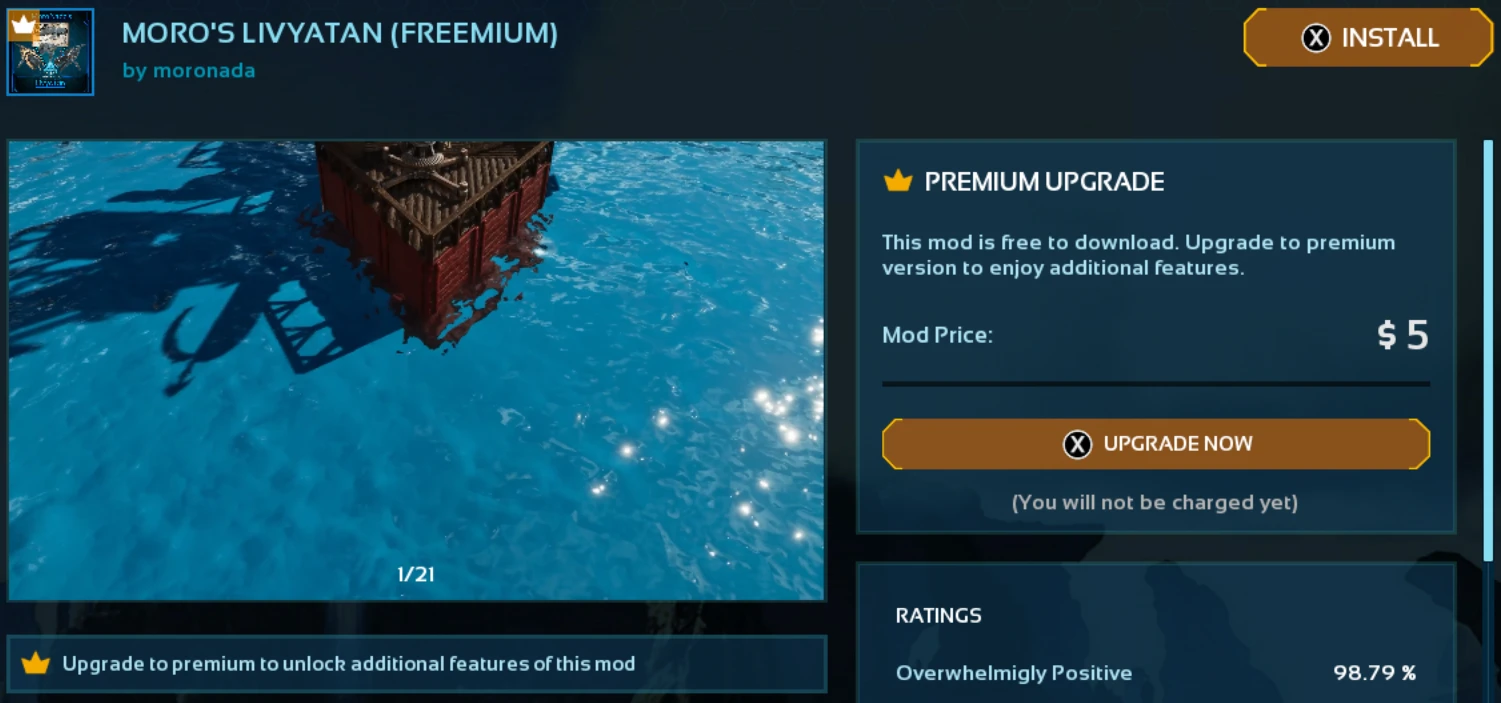
A regular premium mod has to be purchased before it can be installed at all. On a server, that means the server effectively pay-walls itself: every player has to buy the mod before they can join a session that requires it. A freemium mod works differently: any player can install it for free, and the paywall sits inside the mod itself, blocking specific features rather than the install. That paywall is controlled by the mod author, not by the game or the server.
The game provides the mod itself the means to check whether the connecting player has purchased it, and unlocks its premium features accordingly.
This is useful on servers where you want the same mod installed for every player, for compatibility or so everyone sees the same shared visuals, while still letting the mod's creator monetize the features within it. It's set with FPremiumDetails.isFreemium = true on the mod itself, not something the game configures per install.
Testing mods on a server before launch
Before a mod revision is public, authors and server operators can still validate it on a live server. This lets a studio or trusted mod author confirm a new revision works and plays well before it reaches the public catalog.
You can load mods in the New or Ready for review state by passing their IDs via devModIds. Users with appropriate permissions, such as owners, authors, or testers, can then download these unpublished files when connecting to the server.
FAssureServerModsUpdatedParams ServerParams;
ServerParams.devModIds = TestModIds;

ICFCoreClientServerLibrary::AssureServerModsUpdated(
    ServerParams,
    OnProgress,
    OnComplete);
devModIds takes precedence over modIds. If the same mod ID appears in both, the server loads its dev (unpublished) file, not the public one.
You can learn more about how authors can test their mods on servers in this article.